 |
| ||||
|
|||||||||
 |
 |
SuperTintin Skype FAQ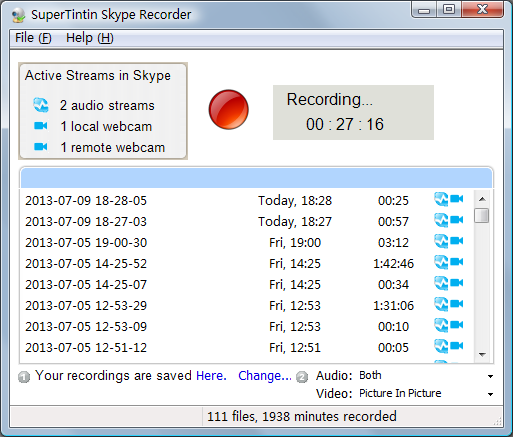
 Win7/Win8/Vista/XP
 600 KB. less than 1 minute to download What is a SuperTintin Skype Video Call Recorder?SuperTintin is a piece of downloadable software that allows you to record both the audio and the visuals of all the video calls that you make using Skype. How do I start recording a Skype conversation?To start a recording of a Skype conversation is really easy. All you have to do is:
What can I record using SuperTintin?SuperTintin allows you to record all audio and video of your Skype conversation, allowing you to record the video that you see throughout the conversation, and/or the video that the other participant sees. It also allows you to digitally record the audio that you would hear through your speakers (the other participants side of the conversation), and/or the audio that is picked up by your microwave (your side of the conversation). There are two video streams in my Skype. Can I choose which one to record?Yes. The SuperTintin software offers six options regarding the video that is recorded, and whichever option you choose determines what is recorded. The options are:
Note: If for some reason, all of these options are not available through your SuperTintin software, we recommend downloading the latest version. How long does it take to download the software?The software is only 3.6 MB in size, so it shouldn't take long at all; roughly three minutes. However, if your download seems to be taking longer than this, you should check your internet speed, as slower speeds could increase the download time, whilst faster speeds could mean that the download completes much quicker. Does SuperTintin contain adverts, adware or spyware?No. Here at SuperTintin, we make our money out of selling top-quality software, not out of affiliations or advertising. This means that all of our software is 100% free of all adverts, adware and spyware. I often conduct conference calls using Skype, can I record them using SuperTintin?Yes. SuperTintin is capable of recording all participants active in a conference call, so that nothing is left out. Can SuperTintin record my Voicemails for me?Amazingly, SuperTintin treats voicemail exactly the same as it does any other type of incoming call that you receive. So, yes, it can definitely record your voicemails. Do I need permission to record conversations?In most countries, it is actually against the law to record video and/or audio without the other party's prior knowledge of it. This is especially so, if the other party is not a close family member or friend. Therefore, it is very important to make all of your video call participants aware of the fact that you intend to record the conversation. It is also advisable to offer them "peace of mind", ensuring that nothing will be shared without their prior knowledge. How do I uninstall SuperTintin?
I need to buy software for several users. Do you offer bulk-buy / Volume discounts for SuperTintin?Yes. We currently offer several discounts depending on how many copies of the software you require. For more details regarding quantities and discounts, please see our Volume Discounts page. To order several copies of the SuperTintin software, please contact out Sales Team at sales[at]supertintin[dot]com, who will be more than happy to help you to complete and pay for your order. Why do I keep hearing echoes in the recordings?The microphone and speakers being too close together is often the prime cause for echo. If you are using a Laptop, this is usually down to the way that laptops are designed with the microphone and speakers being positioned relatively close together. When using both together to in recordings, this will sometimes create an echoing effect. It could also be caused by having the volume on your speakers being set too high. How can I stop the echoing?The best option is to use a headset, which not only eliminates all echoing, but also improves the overall quality of the sound. If you're working from a PC, try positioning the microphone and speakers as far away from each other as you possibly can. How do I set up my web cam for Skype Video?1. To get started, you will need to download, and install, the most recent drivers for your video device (you should refer to your web cam manufacturer"s website for further details). TIP: If you are intending to use a USB web cam, however, it is unlikely that you will need to do this. 2. Open up Skype, and from the main Skype control window, select the appropriate web cam device. To do this, you need to click on the following:
3. Ensure that you have ticked the Enable Skype Video box, and that you have set your video privacy settings to the desired option. 4. Check that you have the adequate system requirements that Skype Video calls need in order to operate properly:
5. Check that your web cam is connected to the PC properly. 6. Make sure that your web cam is not being used by any other programs that could be causing a conflict. TIP: If your device still doesn't work, look to see if it is a Firewire device. Unfortunately, these are not currently supported, and will not work. I want the best possible quality video. How do I set up a video that has a high resolution and frame rate?High quality video was actually introduced with Skype 2.6, and enables users to maximum video quality, providing that they have high performing software that supports it. To make, and record, near-DVD-quality video calls, we recommend that you refer to the to this article that tells you how to achieve higher resolution and frame rate videos, even using hardware that is not necessarily designed to power high quality video calls. Note: SuperTintin has been specially designed to ensure that the high quality videos made through Skype can be recorded without any data loss. What audio and video file formats is generated by the SuperTintin Recorder?The recordings are saved in .mp4 video format (audio and video), or .mp3 audio format (audio only). What is the maximum recording time of SuperTintin?Basically there is no limit as long as there is free disk space available. What software can I use to play and edit my recordings?SuperTintin saves your calls and video calls in .mp3 and .mp4 format, which can be played in Windows Media Player and other common audio/video players like VLC. You can also edit your recordings in popular audio/video editing programs such as the Windows Movie Maker, Adobe Premiere, Sony Vegas, Sound Forge, etc. How can I convert the demo version of SuperTintin to a full version?Please click here to get registered right away. It costs only $29.95. Can I get SuperTintin for free?Whilst we offer the full SuperTintin program for just $29.95, you can also download a free trial by clicking this link. However, the free trial only entitles you to five minutes of recording time, offering you a sample of what you could be getting from the full package. How do I restart Skype?Once the SuperTintin software has finished installing, the installer will ask you to exit and restart Skype. However, simply closing the main Skype window, or even signing out of it, does not close the program down. To exit Skype properly, you need to find the Skype icon on the bottom right of the screen, beside where you will find the PC's clock (if you can't find the icon, click on the left pointing arrow to expand the section, and it should appear). Right click on the icon, and from the pop-up menu, click to "Quit". SuperTintin does not record the remote webcam, how can I fix it?There are rare times that the recorder may fail to detect the remote cam (the other party's video). In most cases, you just need to hang up the Skype call and call again. Please check this post for further information. SuperTintin shows "No Stream to record", what happened?You just need to open the SuperTintin recorder first before starting a Skype call or video call, so it can properly recognize and record the corresponding video and audio streams. Please also check if you have the latest versions of Skype and SuperTintin installed in your computer. Download latest SuperTintin here. SuperTintin and/or Skype crashes when I try to record a call.Please check if there are other recorders installed in your computer. Please close them or remove them temporarily from your computer as they may be interfering with the operations of SuperTintin and/or Skype. However, if the problem continues or if you need further assistance, please send an email to support at supertintin dot com. I have other concerns not listed in your FAQ page, How to I contact support?You can use the webform in support section . or send an email directly to support at superTintin.com. The customer service team usually responds within 12-36 hours. What new features is SuperTintin working on?Here at SuperTintin we are always working on making new products, covering as many Instant Messaging (IM) programs that exist, as we can. Coincidentally, we are currently working on SuperTintin video recording versions, for the following IM programs:
So keep your eyes peeled, and maybe we'll be launching SuperTintin on your favorite IM service very soon... | |
|
Tweet
©2007 - 2013 Supertintin - Supertintin Home - Terms of Service - Report an issue - Affiliates - Skype Video Recorder -  RSS -
Blog RSS -
Blog
Supertintin is not affiliated with MSN. MSN is a trademark of Microsoft Supertintin is not affiliated with Skype. Skype is a trademark of Skype Technologies SA |