

Windows 8 is the latest operating system offered by Microsoft. While everyone else is upgrading their computer and laptop units, people like you who use Windows 8 need to get the ball rolling now with Skype instant messaging!
Windows 8 is the latest operating system offered by Microsoft. While everyone else is upgrading their computer and laptop units, people like you who use Windows 8 need to get the ball rolling now with Skype instant messaging!

While Skype offers many options on how to call them, here is how to do it using their Dial Pad. Here is how to call phones via Skype:
1. Start your Skype! Login by typing your account information
2. At the left corner of your Skype Home, there would be a blue “new call” icon. Begin by tapping or clicking it. Read More …
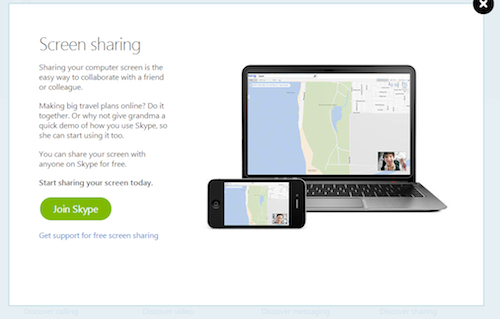
What is Screen Sharing?
Screen sharing is one of the coolest features of Skype which enables Skype users to hold virtual collaborations and tutorials innovatively with each other for FREE. When you share your screen with someone from your contact list, you may choose to run and show any app, programs, or even let the other person see what you browse on the web.
Step 1: Read More …
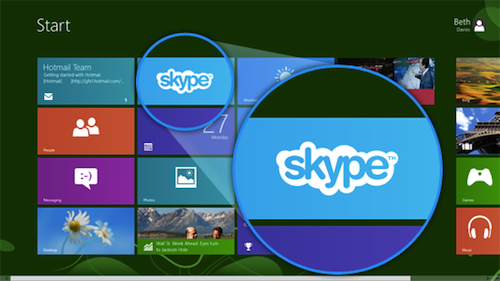
Windows 8.1 is already here! And of course, lovely Skype will not leave us so it has now a new version specially built for Windows 8.1
Here are four guides for different people who want to fully grasp how to use Skype in Windows 8.

Voice Over Internet Protocol (VOIP) requires minimum bandwidth in order to get the best out of communicating over the web.
To avoid interruption when calling someone or when you record Skype video calls, you need to make sure that your internet bandwidth meets the minimum download and upload speeds per type of call you make.
|
Call type |
Minimum download |
Recommended download |
| Calling |
30kbps / 30kbps |
100kbps / 100kbps |
| Video calling / Screen sharing |
128kbps / 128kbps |
300kbps / 300kbps |
| Video calling (high-quality) |
400kbps / 400kbps |
500kbps / 500kbps |
| Video calling (HD) |
1.2Mbps / 1.2Mbps |
1.5Mbps / 1.5Mbps |
| Group video (3 people) |
512kbps / 128kbps |
2Mbps / 512kbps |
| Group video (5 people) |
2Mbps / 128kbps |
4Mbps / 512kbps |
| Group video (7+ people) |
4Mbps / 128kbps |
8Mbps / 512kbps |
To verify if your internet service provider gave you enough bandwidth for a clear Skype connection, follow these instructions: Read More …
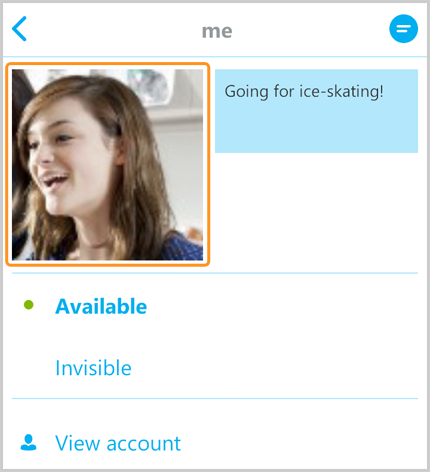
Changing your Skype profile picture and status lets you personalize your Skype experience. It’s easy. Let’s get started!
Posting a status updates your friends on what’s going on with you or if you’re available to talk. Statuses are an easy way to communicate to your friends to let them know if they can chat or call with you right away. There are two options available on the list, available and invisible. The status available will let you appear as online in your contacts list, while invisible status is like saying “I’m unavailable right now”. Ready to change your status? Let me guide you in changing your status by these simple steps: Read More …
Windows 8 is the latest Operating System offered by Windows. It offers a different kind of experience even when you use Skype. If it’s your first time to use Skype on Windows 8, you might need to familiarize yourself first with its different look. But yes, it still has your favorite Skype features, of course. Whether you want to reach your friends or want to adjust your settings, the friendliness and functionality of Skype remains when used on a Windows 8 device.
Getting started
For your desktop, download the latest Skype for Windows. The Skype version for Windows 8 desktop is currently worked on, but you don’t have to worry since this works well on Windows 8, too. Once you’ve signed in, the icon of Skype for Windows desktop will appear in the Start screen together with your other apps. Read More …

You can’t wait to get home and log into Skype to talk to your loved ones. You hurry up after work and rush through traffic. The minute you open the door to your place, you immediately head to your laptop. You turn it on and you log onto Skype.
Then, 10, 20, 30, 60 seconds passed and your Skype connection still isn’t working. You give it a few more minutes and all you get is that grey thing that endlessly circles on your screen.
Yes, this scenario can be very frustrating. But this doesn’t mean that there’s nothing you can do to connect to Skype for Windows 8. Here are some tips you can follow:
It is possible that you might be having problems with your internet connection (i.e. slow download/upload speed), especially if you’re hooked up to a Wi-Fi network. So check your Skype application at least three times. Take a look at the cables connecting the modem and the phone line.
This simply means that you uninstall the Skype application in your computer and then, install it back. In the Start screen, you will need to press and hold the Skype for Windows 8 tile. Tap or click ‘Uninstall Skype’. Once the software has been removed from your system, visit the Skype website, look for the download button, and then install Skype again.
If the previous two solutions suggested so far still do not work, it wouldn’t hurt if you check other things that might be causing your problem. If you have your computer’s firewall and anti-virus installed, try unblocking Skype from your security program. Then, restart your PC and login to Skype again.
Software applications need to be updated once in a while to make sure they work optimally. Maybe your Skype just needs to be installed with the latest update for it to work. Click on Help and then, click for the ‘Check for Updates’ button.
PS: You may want to download a free Skype recorder, just to be sure you have a copy of your calls for next time. Try it now!
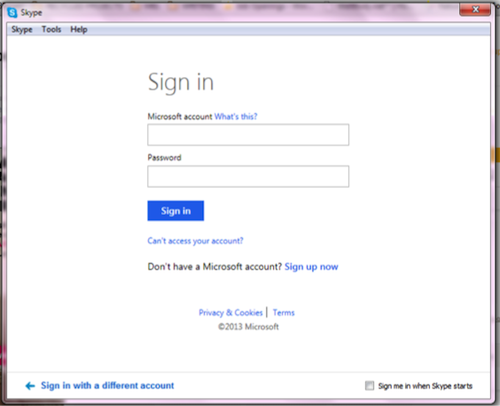
Are you a bit confused on what a Microsoft account is? Not sure if you signed up for one already? If you remember yourself signing up for a Windows Live ID before, that is what it used to be called. The e-mail address and password combination you have can now be used to join Skype. It is the same details you use to sign in to Hotmail, Outlook.com, Messenger or SkyDrive.
Don’t worry if you don’t have a Microsoft Account yet because it’s so easy to create one here – http://signup.live.com.
If you have a separate Microsoft account and Skype account, then don’t fret as well. Avoid the hassle of forgetting passwords by merging these two with your Microsoft account. You also get to keep in touch with all your contacts in one place. By merging your accounts, you now have improved security and easier password recovery. Remember, only one Skype account can be merged with one Microsoft account.
If your device is an Android phone, Mac, or iPhone, you can still log in to Skype using your Microsoft account. Simply enter your details just like how your friends do it on their Windows device.
Your contacts in both accounts gets synchronized once you sign in to Skype with your Microsoft account. The same e-mail address you used to sign in will also be shared. To check this, sign in to your Skype account, click Account details, then Account settings. Browse through the Linked accounts section to view the details.
Now that you’ve figured out how to sign in to Skype using your Microsoft account, it’s time to explore on staying connected with your friends. Supertintin is a third party application that is suited for Skype audio and video call recording. This is a very handy tool you can use whether you are conducting a business meeting or a study group. Download it now and experience both Skype and Supertintin, the Skype recorder you always wanted!
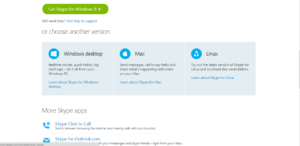
So what is Skype?
Skype is a software application initially released in August 29, 2003. It was later on developed by Microsoft Skype Division. It enables millions of its registered users to avail Skype-to-Skype voice and video calls for FREE and lets you avail group video calls, calls to landline telephones, mobile phones, and transfer files over the internet, plus you may also get Skype features for your TV at a considerably low cost!
The software display varies according to what device you are using, whether that be Mac, iPhone, Windows 8, Windows Desktop, Android and iPad. To use Skype, you need to have a high-speed home broadband, a webcam, a microphone and speakers.

Mobile phones aren’t the only gadgets that can send SMS text messages. With Skype, other gadgets like laptops or tablets can send SMS too. All you need is an internet connection cause Skype texting makes it possible. If you don’t know how to send SMS text messages via Skype, let me teach you. But before that, make sure that you have enough Skype credits.
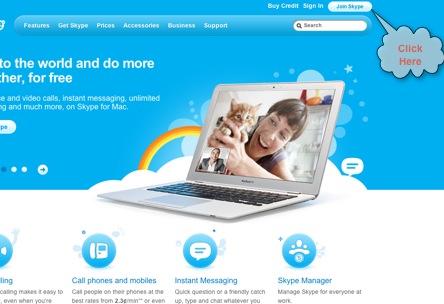
Maybe you’re too amazed with Skype now and you want to join?
You can join Skype through your Microsoft account or as a regular account user. With your Microsoft account, you can connect with your Microsoft contacts and will have a better security features. Just never forget your password!
Your Microsoft account should be linked to your e-mail address and password that you’re using in any services like HotMail, Messenger, SkyDrive, Windows Phone, XBOX Live or Outlook.
Now that you’re signed in to Skype, you can now use it in your computer, tablet or smartphone, anywhere and anytime. You can also link your Skype to your other accounts like Facebook.
Skype is a great video and audio calling application. You can even record Skype calls using Supertintin, the leading Skype recorder now. Visit www.supertintin.com for more information about this great product.
 While popular among many as the application of choice for communicating with far-flung loved ones, numerous businesses are taking advantage of the many fantastic Skype features it offers.
If you and your co-workers are spending a lot of time in front of the computer screen, you might as well consider utilizing the convenience of instant messaging. Read on and learn about different features you can utilize to increase productivity in the workplace: Read More …
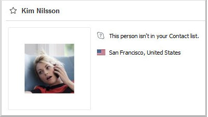
If you want to be able to really enjoy using Skype as your instant messenger of choice, you have to know every widget or feature that can help you do just that.
There are call forwarding options and Skype add-ons that you can use so you can stay in touch with your friends and loved ones wherever you are. Another way to make your experience all the more fun is to make yourself easy to find on Skype. How do you do that?
1. Include as much information about you as possible.
This doesn’t mean that you’re going to jeopardize your safety online. You only need to include information that can help your friends and other people find your Skype profile. This can include your complete name and the city or town you live in. If you go by a different name or have a popular penname, you can use this instead.
2. Provide a clear and recent picture of yourself.
Of course, it’ll be much easier for other people to recognize the owner of any profile. An image of you will also invalidate any doubt your friends or colleagues may have on the profile they find when they search your name. Similarly, you’ll be able to add more Skype contacts into your account because people will easily recognize you when you send them contact requests.
If you don’t know how to change your profile picture or edit the information on your account, it’s best to read up about it online. You’ll also be able to find other useful information about Skype usage through http://www.supertintin.com/blog/.
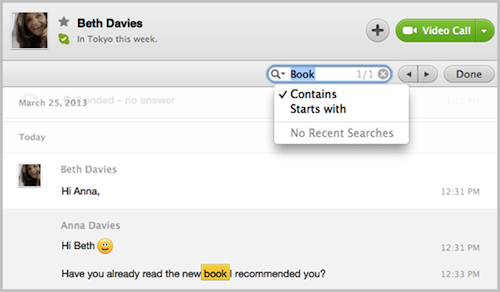
Did you know that the Skype Search Bar in your toolbar can be used in so many ways?
For Mac users, here are just some things you can find using the Search Bar: Read More …
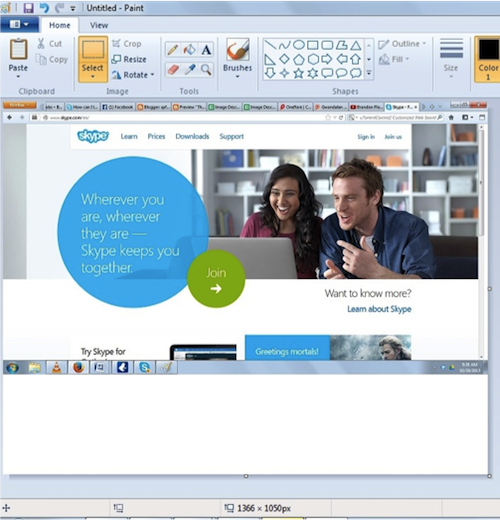
Taking screenshots of your computer screen – similar to when you record Skype video – is a great way of graphically showing another person what you can see on your monitor.
Use it whenever you need to show someone else on Skype screenshots of what you’re looking at, like a website, a game of a funny image. How to do it depends on what operating system you are using though. Check out below how to make your own screenshots.
Press the Windows +Print Screen (Prt Scr) key combination on your keyboard to take a screenshot of the entire screen. For taking a screenshot an active window, press the Alt+Print Screen (Prt Scr) key combination. The images are automatically saved in the Screenshots folder which is located in the Pictures folder under your Libraries folder.
Click the Command+Shift+4+Spacebar key combination on your keyboard and select the window to take the image of.
Press the Command+Shift+3 key combination to capture the whole screen.
To screencap a part of the monitor, click the Command+Shift+4 key combination. It is as simple as clicking and dragging the cross-hair cursor to indicate the area you’d like to include in the image. Releasing the mouse button will save it.
The images are saved on your desktop in .png format.
For taking screenshots of your entire screen, click the Print Screen (Prt Scr) key on your keyboard. Paste the screencapture into your picture editing software and save. Press the Alt+Prt Scr key combination to take a screenshot of an active window.
PS: Need to record Skype video for email attachments? Use Supertintin!
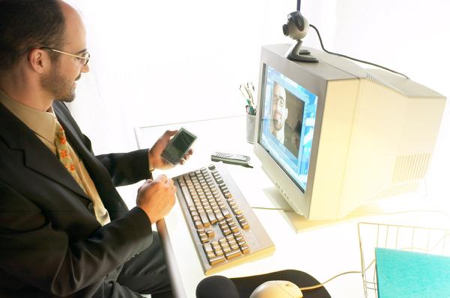
Companies all over the world use Skype for business. Voice over internet Protocol (VOIP) brings considerable savings in communication costs.
Aside from communicating through voice and chat, employees have found additional features such as a Skype video call recorder very useful especially in documenting important conversations. All you need is a stable internet connection with sufficient bandwidth with at least 400kbps (for video calls), audio devices and a computer that is fast enough to run Skype.
VoIP applications are popularly known as social or instant messaging apps. Once installed, you start to add and accept contacts whom you want to exchange calls and messages with. The same works for Skype. That’s why a contact request is always vital.
Two-way street Read More …

Skype has been able to connect millions of people across the globe. Businessmen and families separated from each other have proven the functionality of this application. Another group won’t let themselves be left behind with this technology. They are the students.
College students, in particular, can have a lot of ways on how to fully maximize their good study habits with Skype for students. Here are a few to set them on the go!
1. No man is an island Read More …

Android tablet users do not need to worry. Most of Skype’s popular features (voice calls, video calls, mobile and landline calls, file sharing, and instant messaging features) are available on the device.
Here are some quick answers to frequently-asked questions regarding Skype for Android tablets:
1. Does it function on 3G, 4G and WiFi? Read More …
 RSS -
Blog
RSS -
Blog

